How to add a team member to a job in YakProject
People only see the jobs they belong to, and their role on each job decides what they can do there. Add a colleague to the job's team with the role that matches their work.
Before you start
- Owner, administrator or project manager on the job
- The person already has a YakProject login in your company (invite new people from People)
Preview voice Narrated with a local preview voice; the final recording replaces it.
Transcript
Give a colleague access to one job, with the right role.
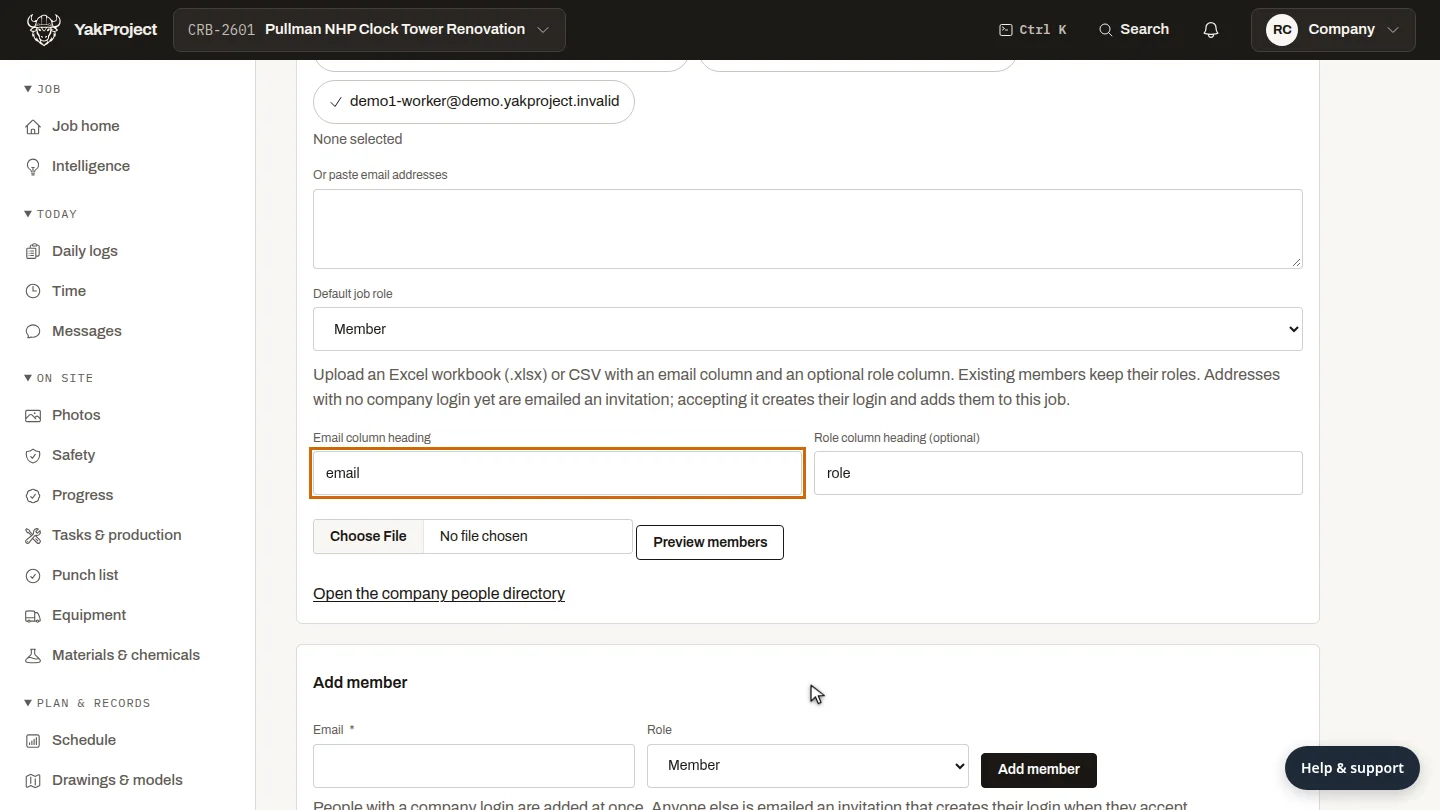
Open the job's Directory. The Team tab lists everyone on the job by role. Select Add member at the bottom of the list.
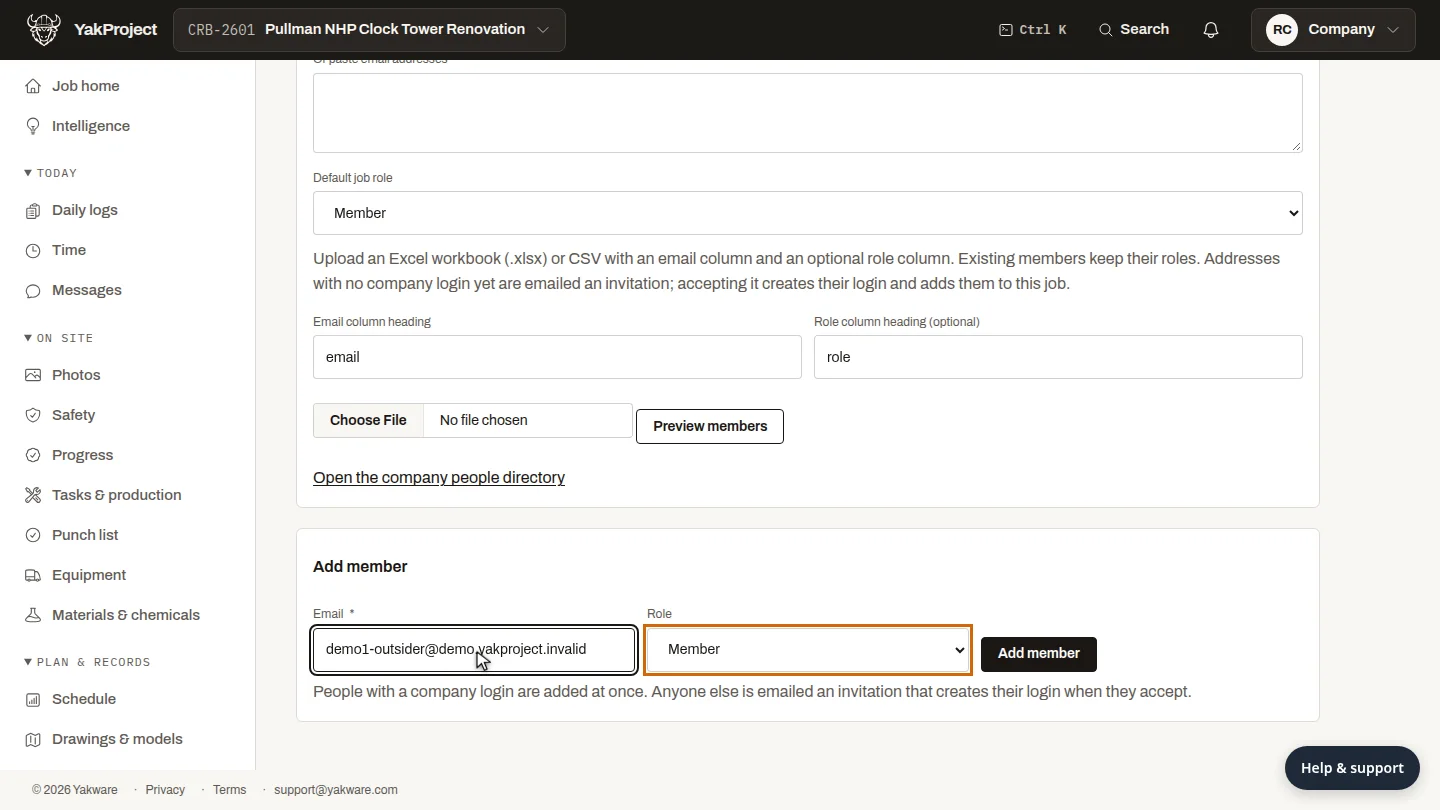
Enter the person's work email. The role starts as Member. If they'll run the job, choose Project manager or Superintendent instead.
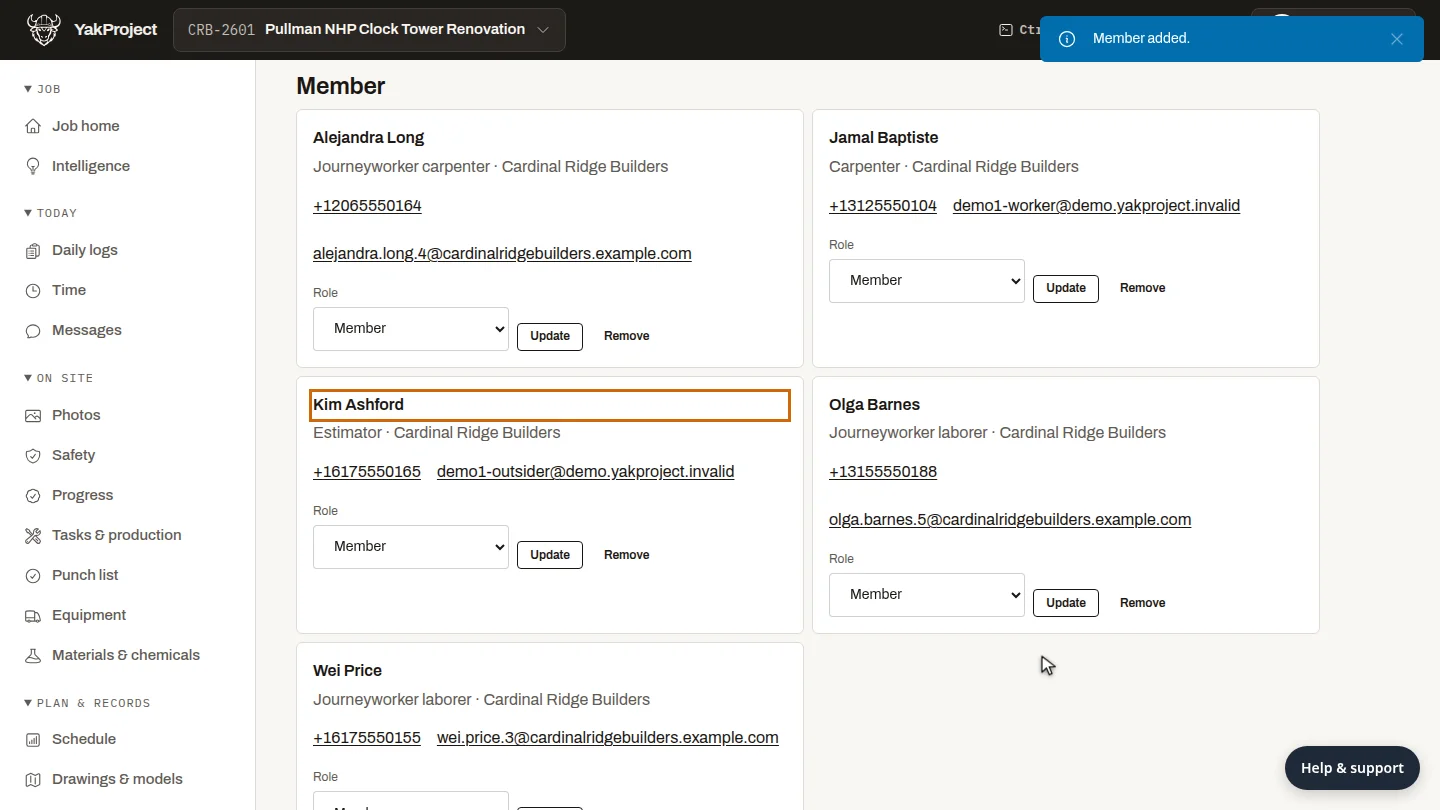
Select Add member. YakProject confirms it, and Kim Ashford joins the team list under Member, with access to this job.
Steps
Open Add member ▶ 0:05
In the job's Directory, on Team, select Add member.
Enter their email and role ▶ 0:14
Enter their Email. Role starts as Member; choose another role if they need more access on this job.
Add them ▶ 0:23
Select Add member. Member added. appears and the person joins the list under their role.
Next steps
Updated 2026-10-26
invite to project project member job role permissions team directory