How to clock in a crew in YakProject
When a crew arrives together, the foreman can clock everyone in at once instead of waiting on each phone. Each person still gets their own time entry, with a note of how attendance was checked.
Before you start
- Foreman, superintendent or manager on the job
- Your time policy allows supervisor punches
- A crew set up on the job
Preview voice Narrated with a local preview voice; the final recording replaces it.
Transcript
Clock in the people who just arrived on site, in one go.
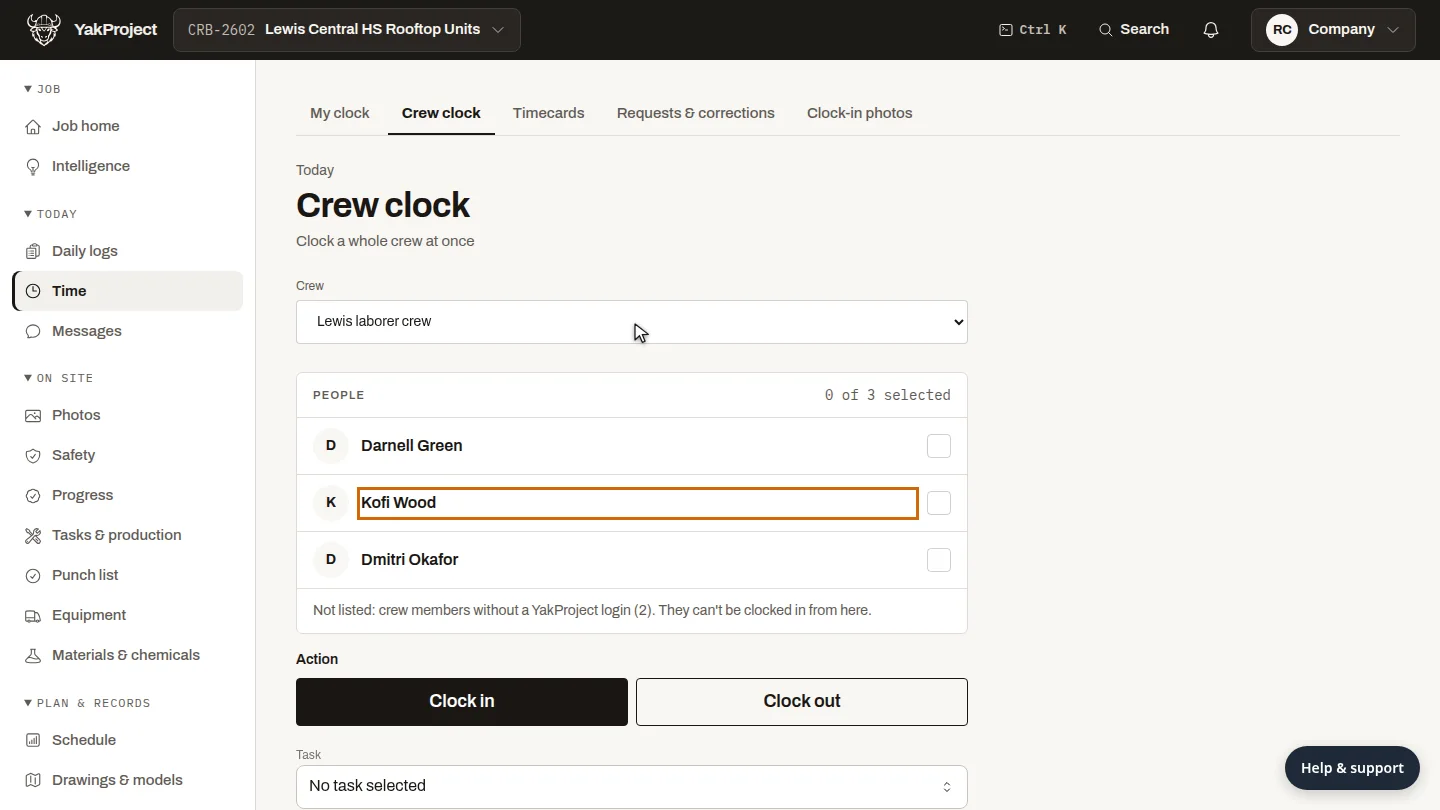
On Crew clock, choose the crew. Everyone on it with a YakProject login is listed.
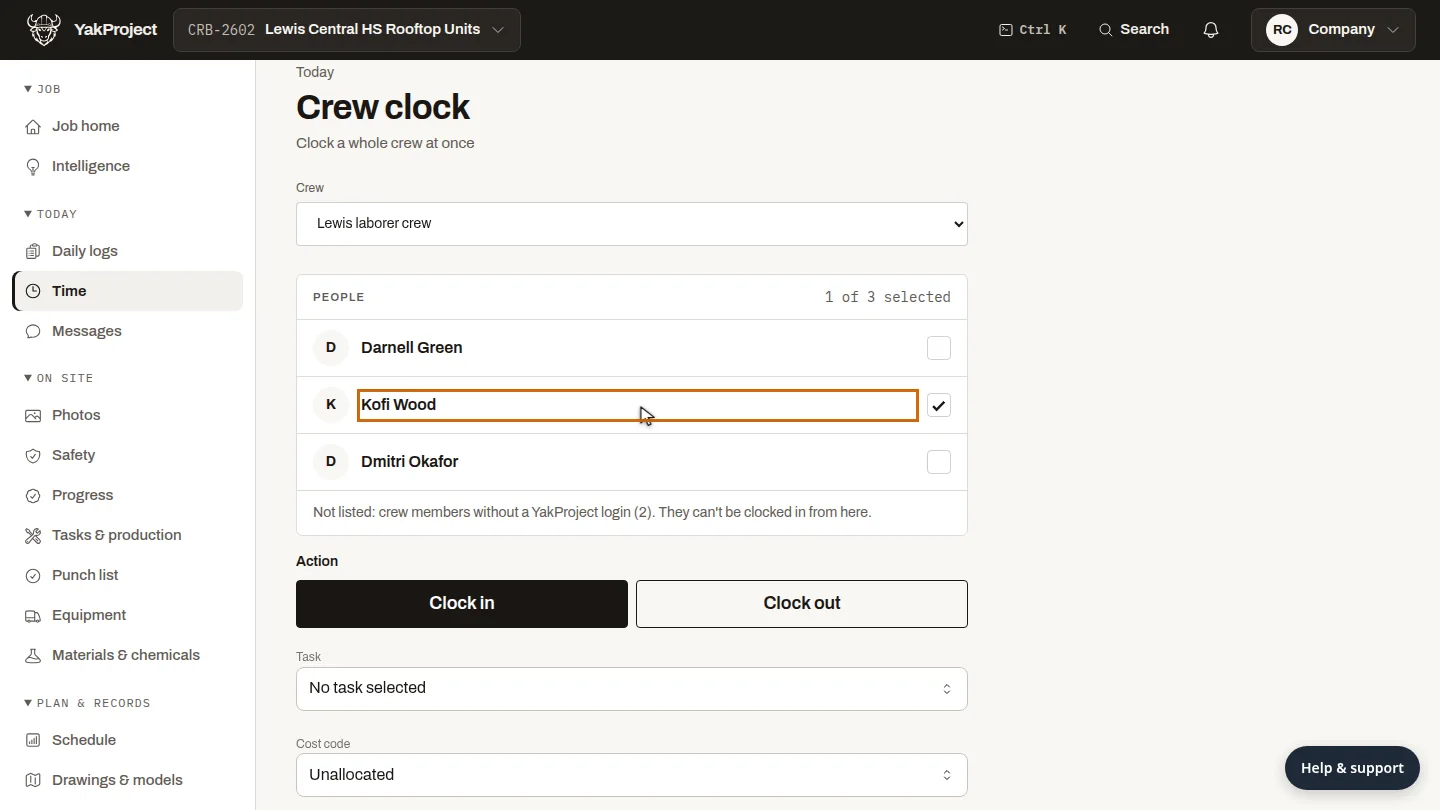
Tick the people who are here. Clock in is already selected.
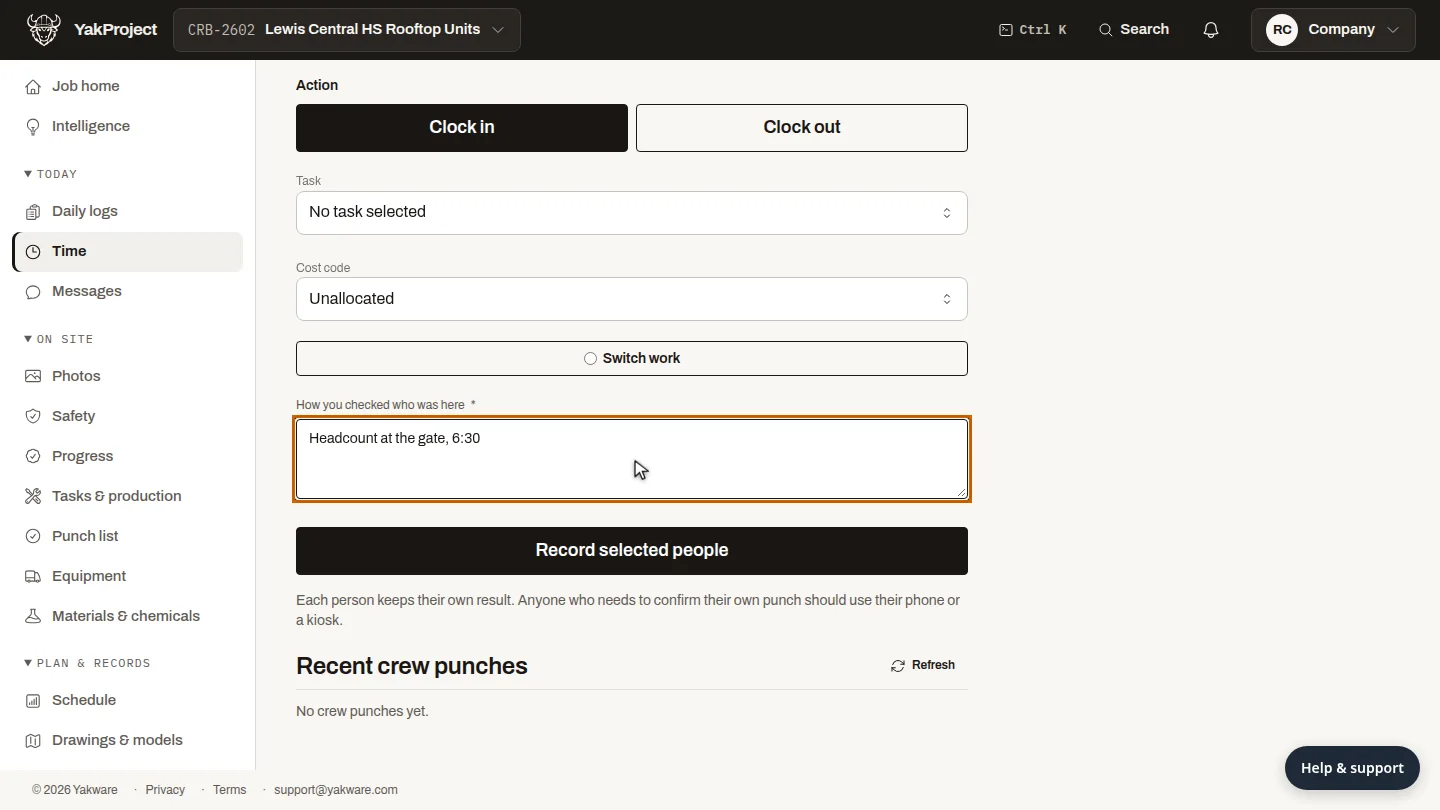
Under How you checked who was here, say how you confirmed it, for example a headcount at the gate.
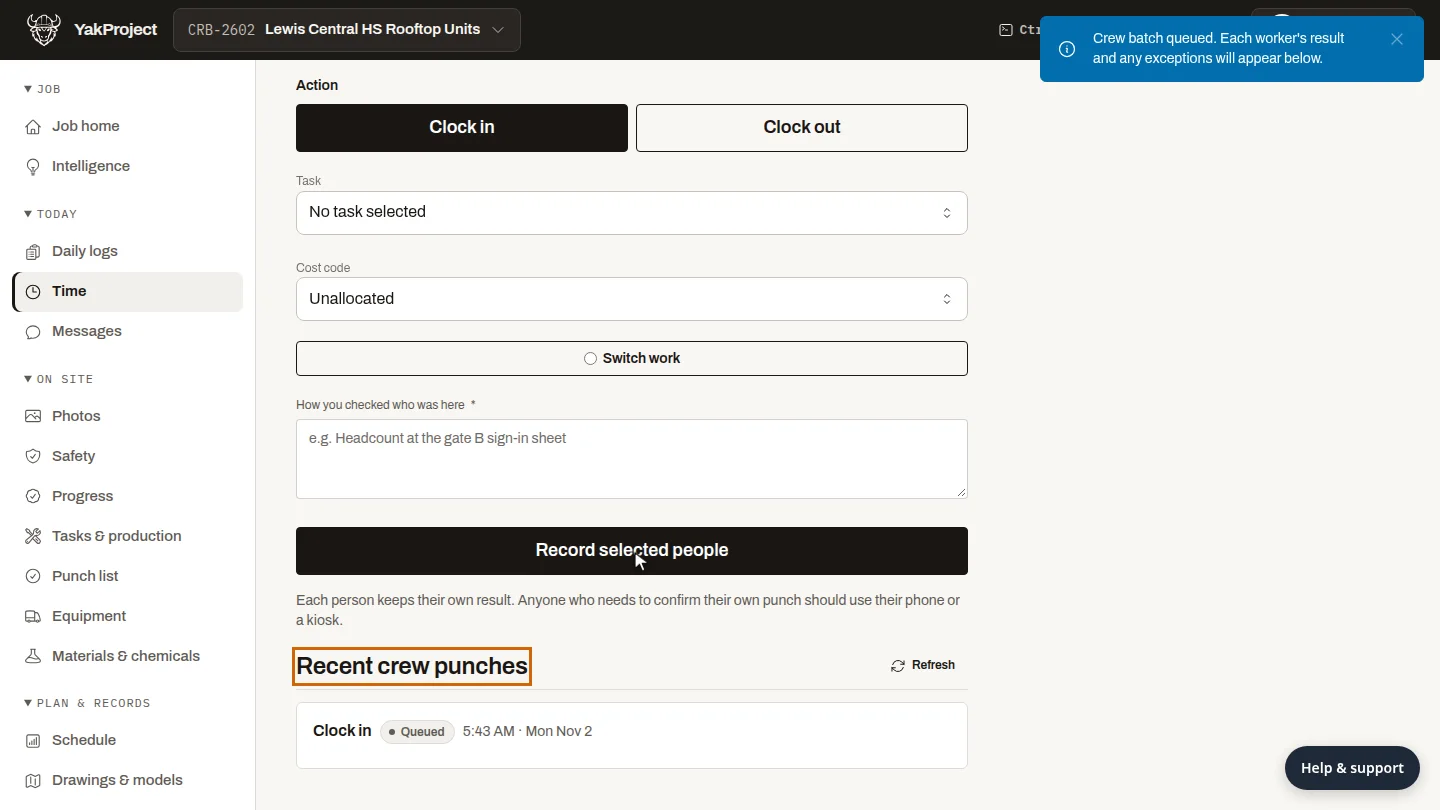
Select Record selected people. The batch appears under Recent crew punches, and each person's result follows.
Steps
Choose the crew ▶ 0:05
On Crew clock, choose the Crew.
Select who is here ▶ 0:11
Select each person who is on site. Clock in is selected by default.
Say how you checked ▶ 0:16
In How you checked who was here, describe how you confirmed attendance.
Record the punches ▶ 0:23
Select Record selected people. The batch appears under Recent crew punches.
Next steps
Updated 2026-10-26
crew time clock clock in workers timesheet attendance foreman time entry