How to complete a day's log in YakProject
Completing the day locks the log and records who vouched for it, so the job has a dependable record if a delay or claim comes up later. A completed log can be reopened with a reason.
Before you start
- Superintendent or manager on the job
- A draft daily log
Preview voice Narrated with a local preview voice; the final recording replaces it.
Transcript
Check the day's log and complete it, so it becomes the job's record.
In Daily logs, find the most recent draft under Daily report packages and select Edit field data.
Answer every question in the Daily log survey. If you answer Yes, add a short explanation of what happened.
Select Save and submit. The Complete this day page shows everything you're vouching for.
Read the log, then tick the acknowledgement that it's complete and accurate.
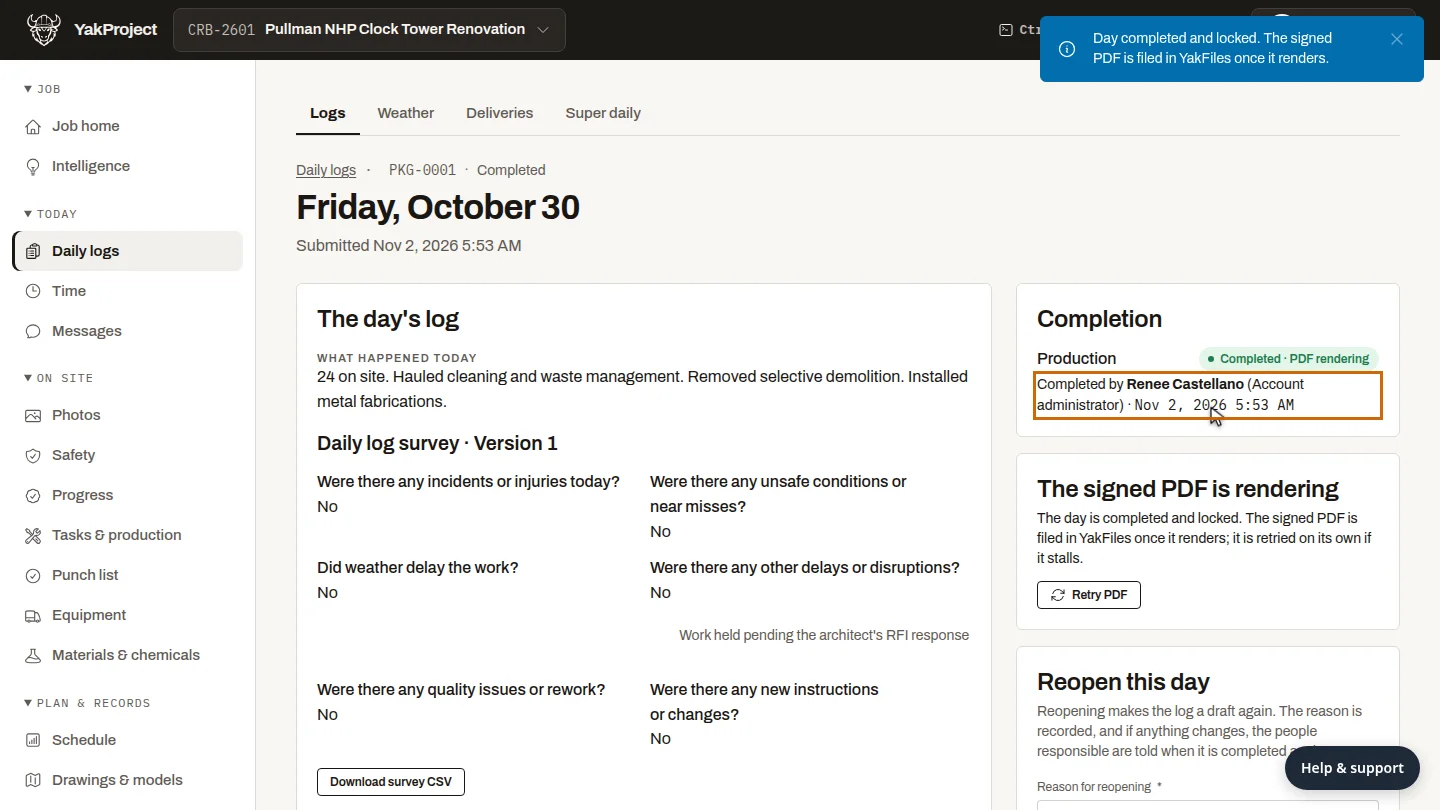
Select Complete day. The log locks, and it shows who completed it and when.
Steps
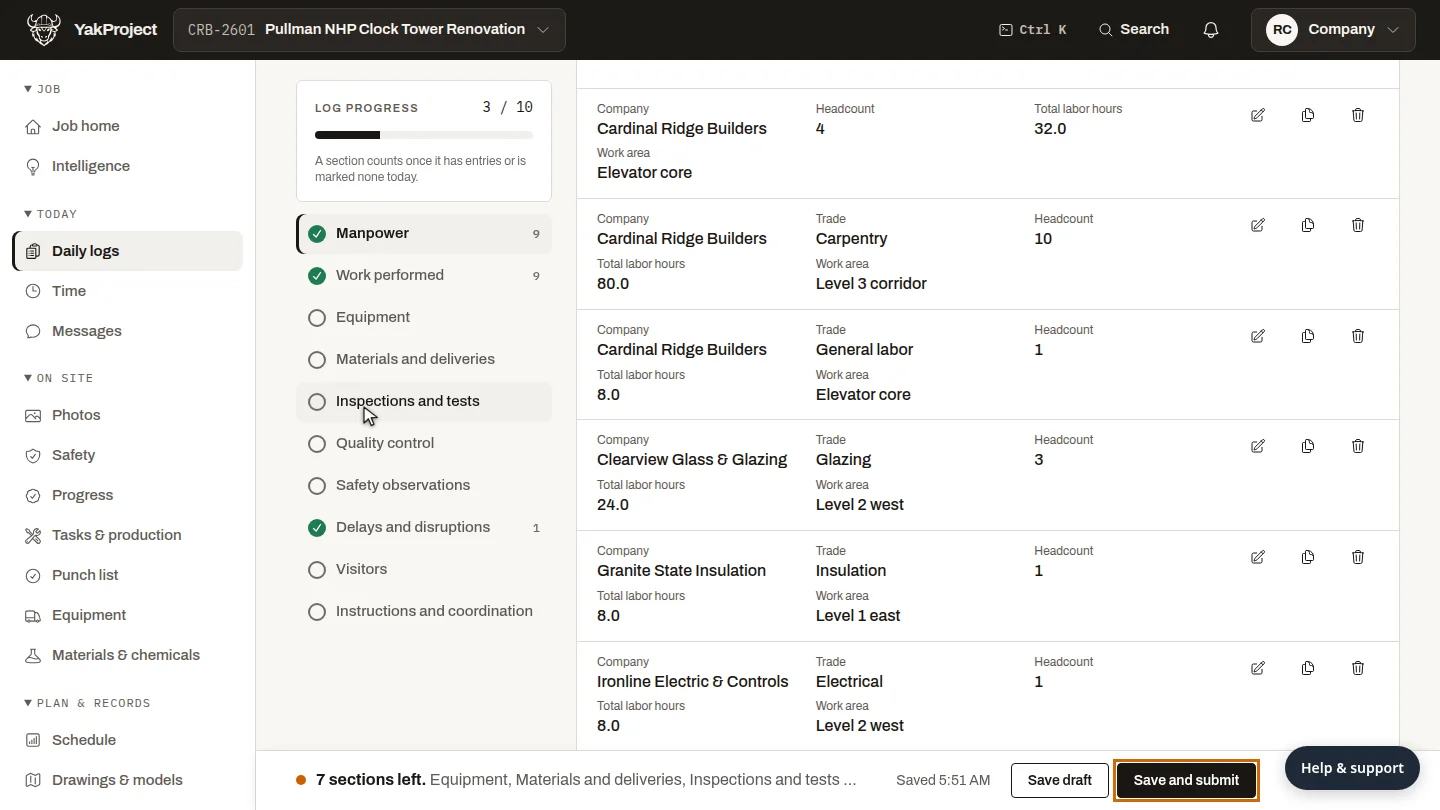
Open the draft ▶ 0:06
Under Daily report packages, select Edit field data on the draft.
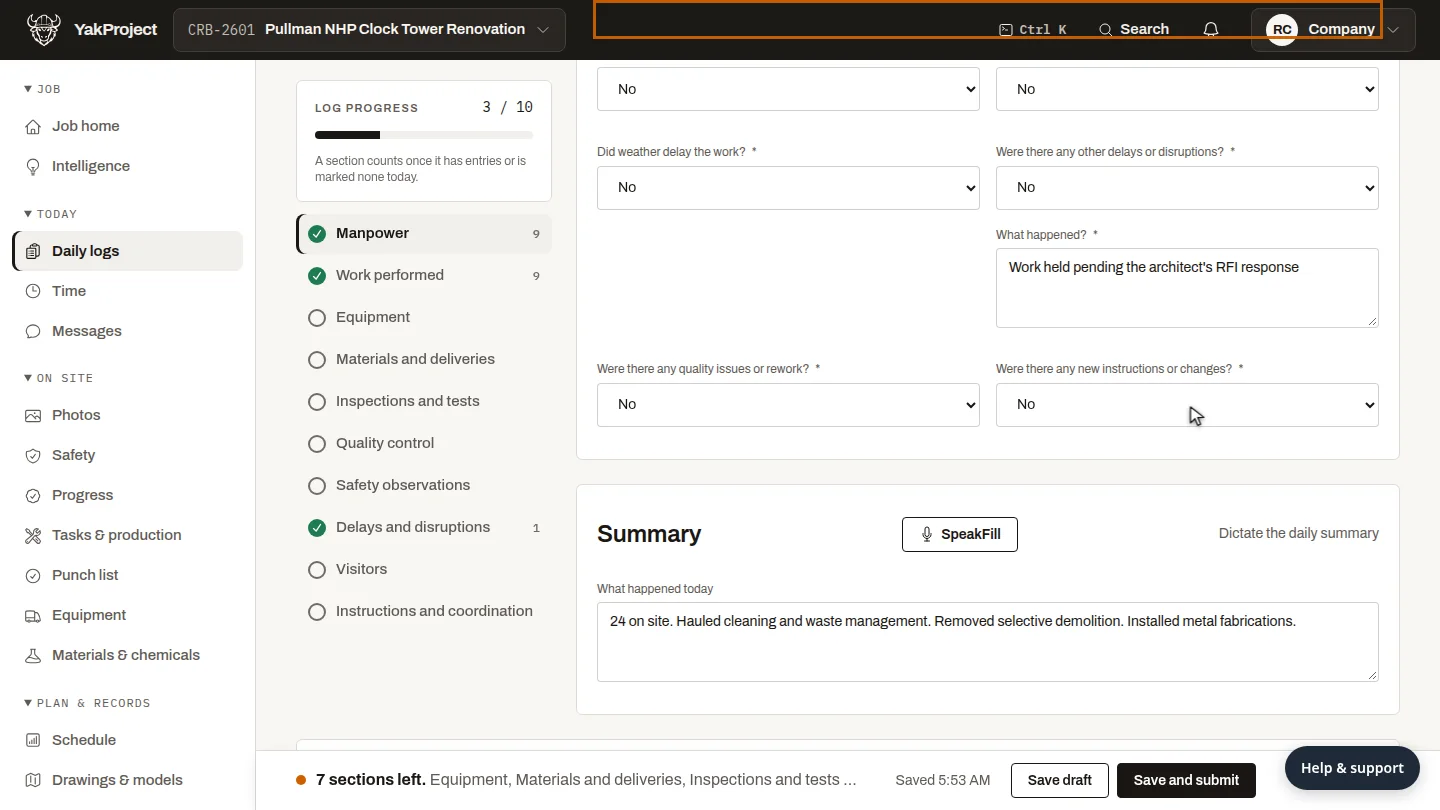
Answer the daily survey ▶ 0:13
In Daily log survey, answer each required question. Explain every Yes answer.
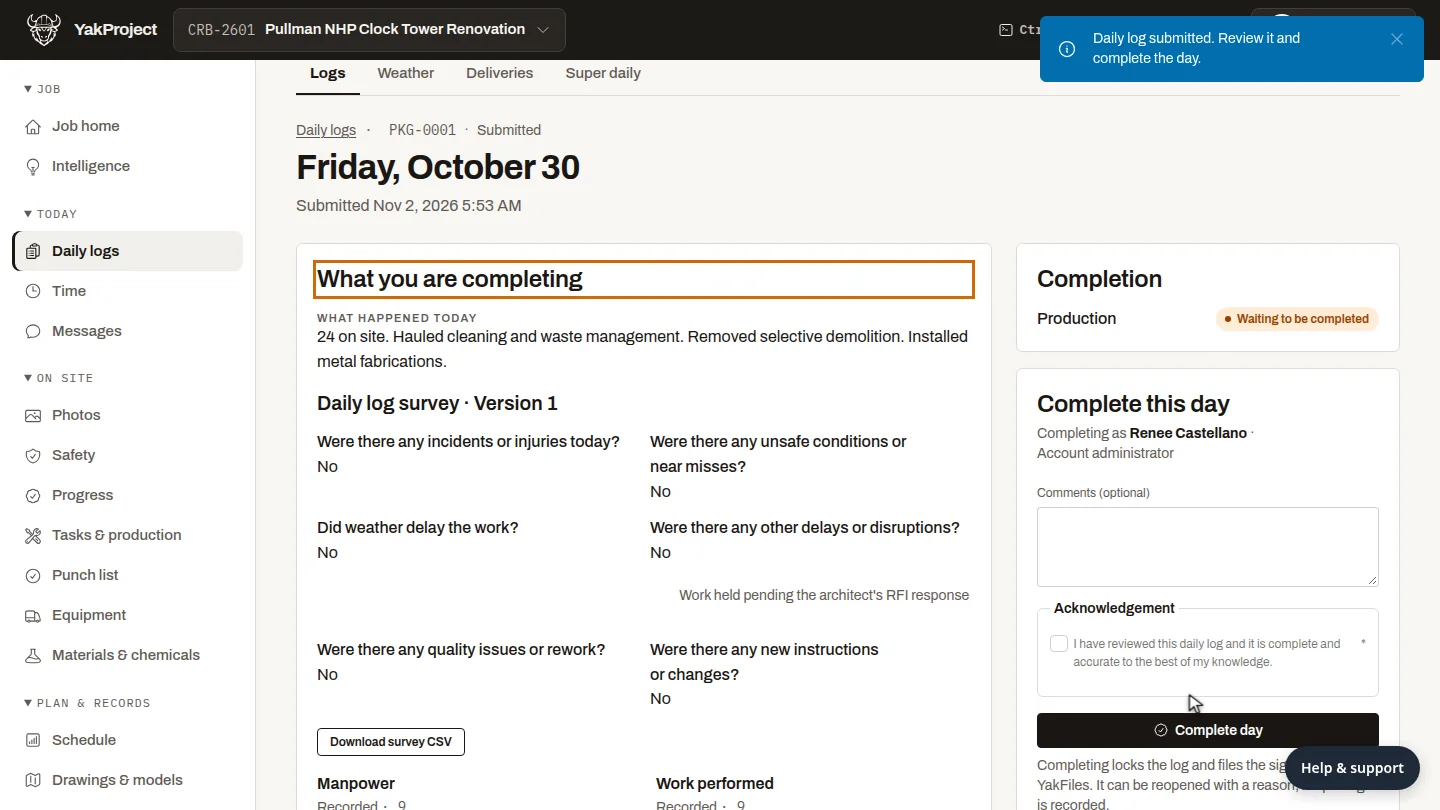
Submit it ▶ 0:21
Select Save and submit. Complete this day opens with the full log.
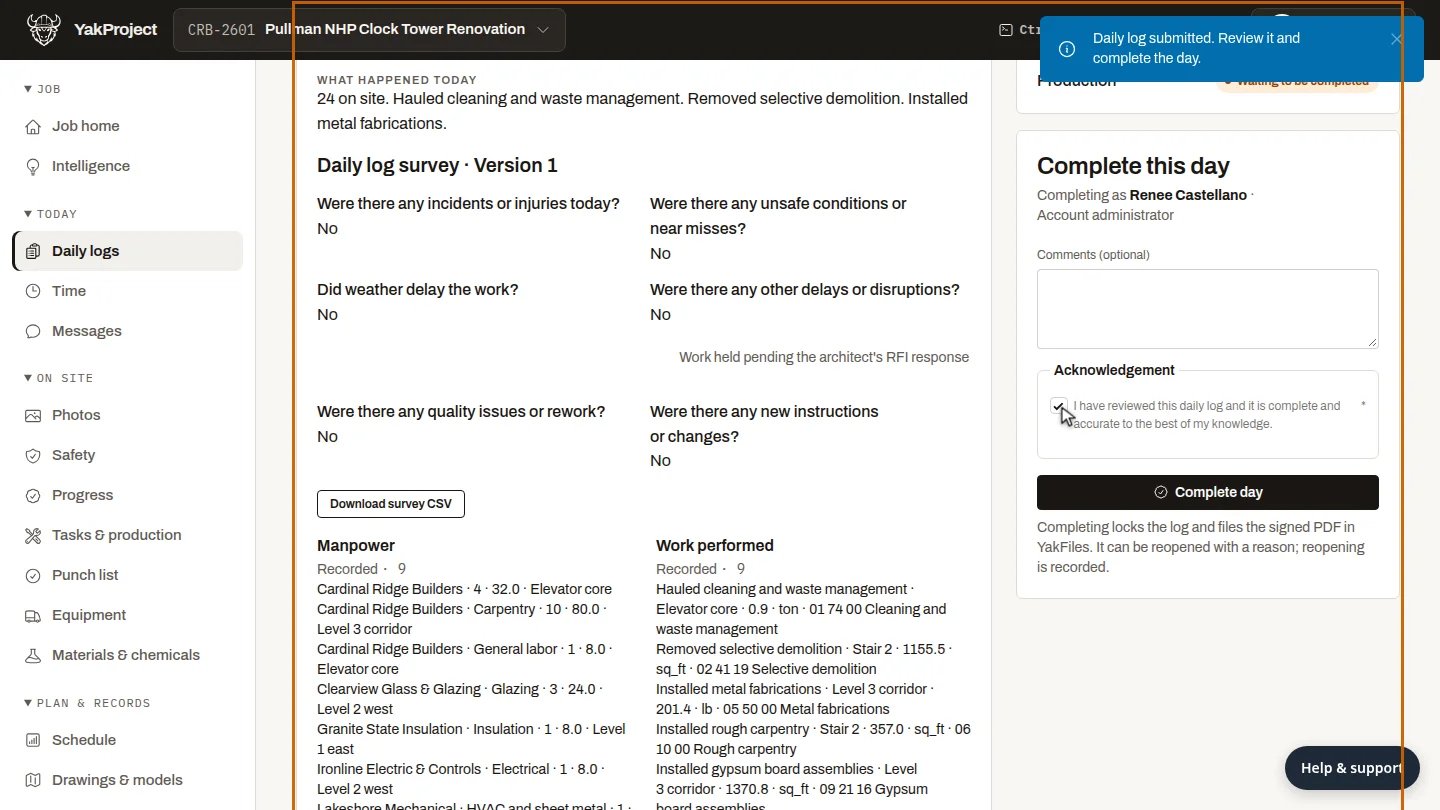
Confirm it's accurate ▶ 0:28
Under Acknowledgement, select the confirmation checkbox.
Complete the day ▶ 0:34
Select Complete day. The log shows Completed by with your name.
Next steps
Updated 2026-10-26
sign daily report certify log lock daily log submit daily report