How to create a job in YakProject
Every daily log, photo, punch item and timecard in YakProject belongs to a job. Create the job first, with its number and time zone, so the field records land in the right place and dates match the site's local day.
Before you start
- Owner or administrator role in your company
- A free active job on your plan
Preview voice Narrated with a local preview voice; the final recording replaces it.
Transcript
Set up a new job in YakProject, so the crew has somewhere to log the day.
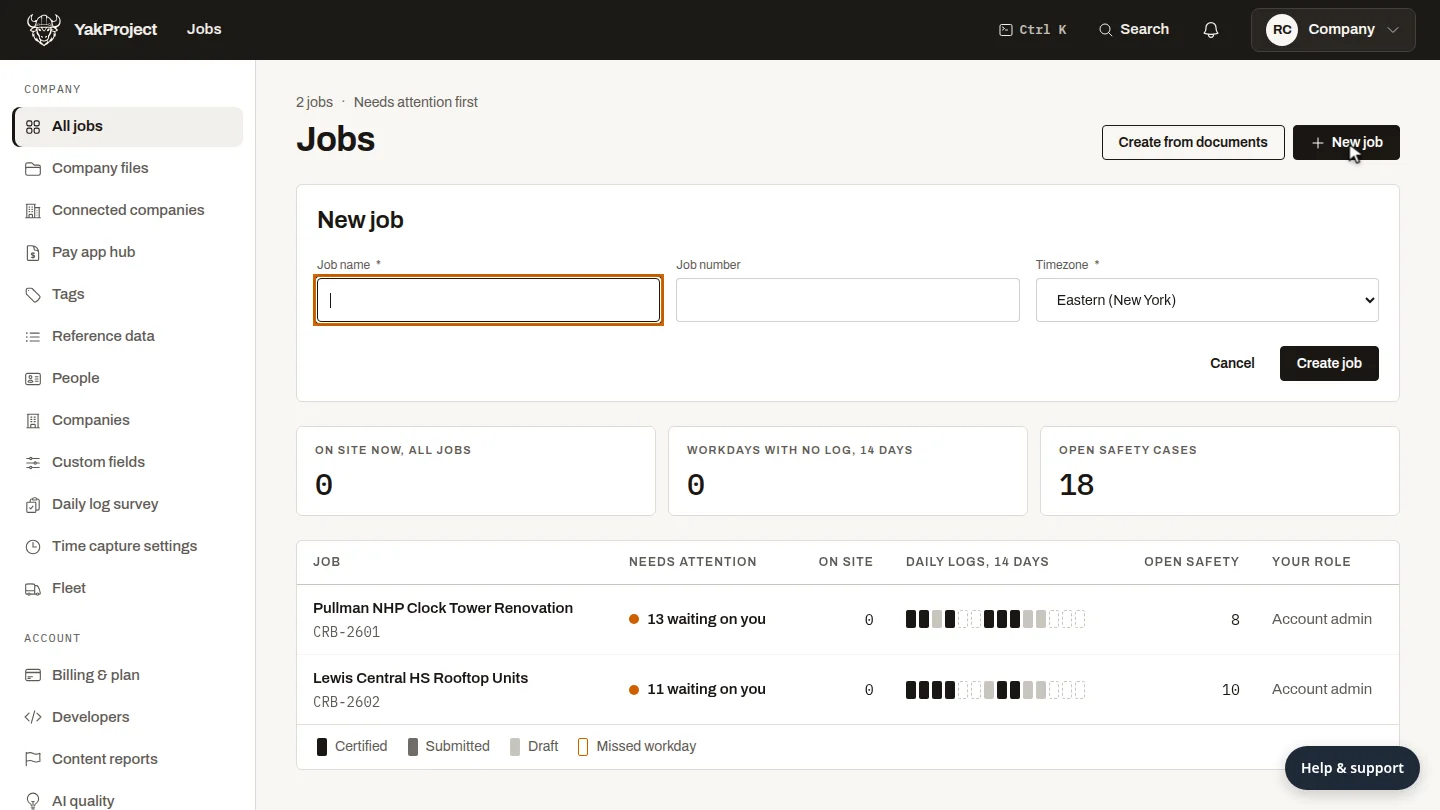
On the Jobs page, select New job. A short form opens with the job name, number and time zone.
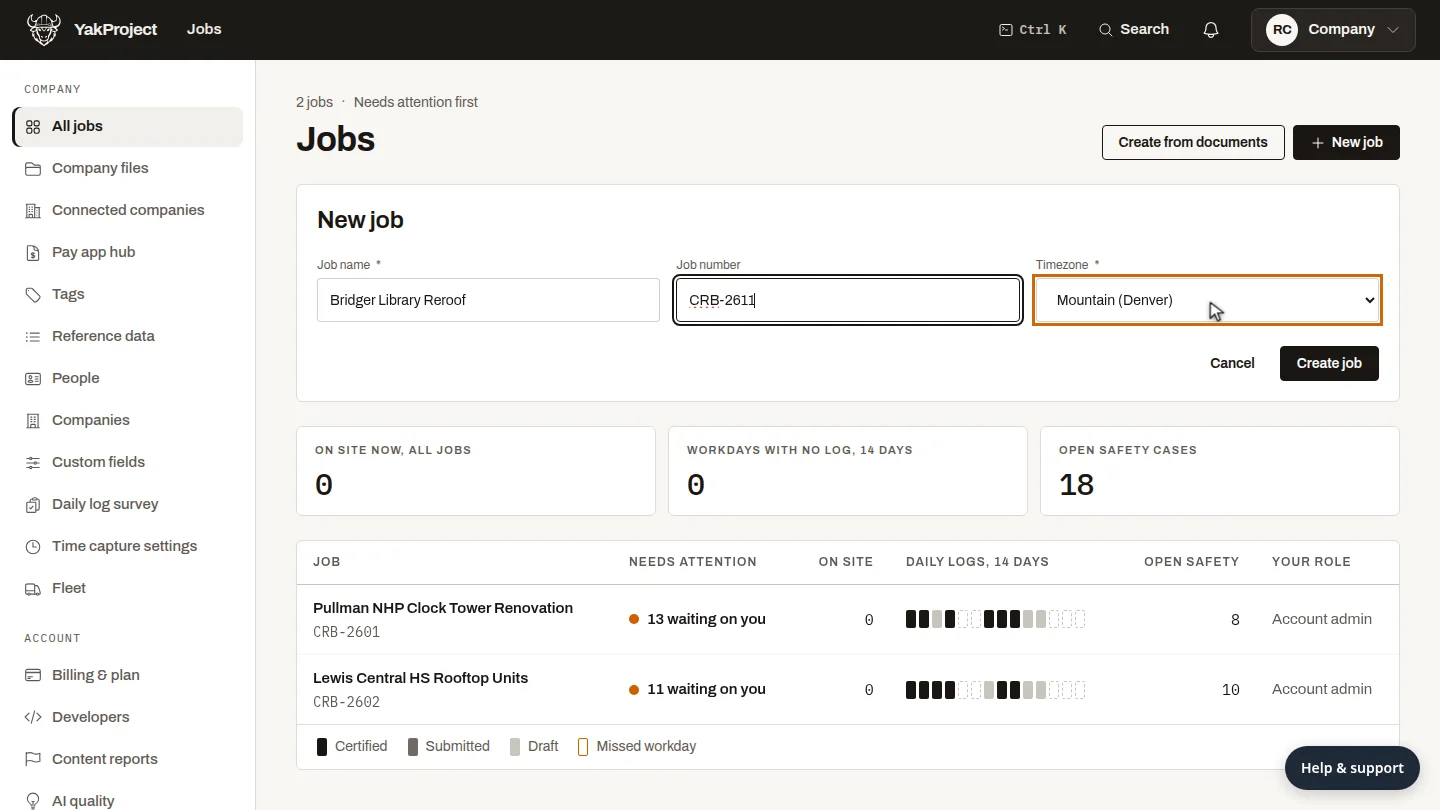
Enter the job name and your job number. Then choose the site's time zone, so each daily log is dated by the site's own clock.
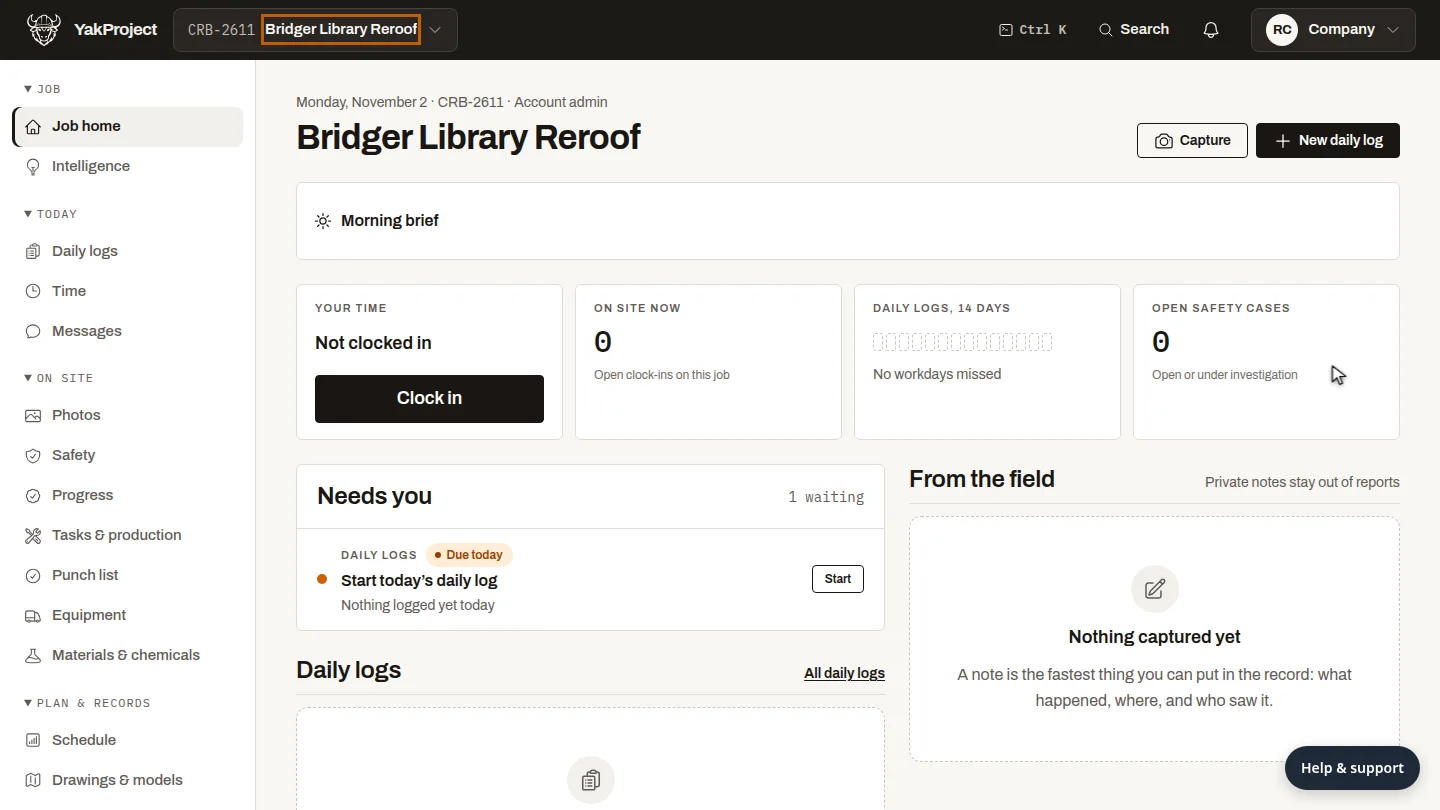
Select Create job. The new job opens on its Job home, with daily logs, time and safety ready to use.
Steps
Start a new job ▶ 0:06
On Jobs, select New job.
Name the job and pick its time zone ▶ 0:13
Enter the Job name and Job number, then choose the site's Timezone.
Create the job ▶ 0:22
Select Create job. The job's Job home opens.
Next steps
Updated 2026-10-26
new project add a job create project job number construction project setup